MTN TRANSFER, ZAIN TRANSFER AND GLO TRANSFER OR POSTPAID


From MTN to MTN

Procedure


Firstly, Create or Change your secret pin. The secret pin is 4 digit which you use as a pin to transfer credit to person's phone. And this Pin is kept secret, so that another person will not tramsfer your credit.

how to change or create your Pin

Send sms to 777 using this format Default Pin New Pin new Pin. Example: 0000 1234 1234 immediately you send it, you will receive a message telling you that your pin has been changed successfully.

to transfer credit

Send sms to 777 using the format Transfer Recipient's phone number Amount Pin

Example: Transfer 08067879890 100 1234. Send it to 777. Immediately the message is sent, you will receive a message asking you to confirm your request. Then you confirm by sending Yes to 777 in sms instantly. After your confirmation, your credit will be transferred from your phone to that person.
You can also use dialing method example  *600*080340000000*100*1234# then send Ok
here 100 is the amount you want to transfer and 1234 is your security code number

How to transfer credit from Glo to Glo glo

Before you transfer credit on Glo network, you must activate Glo ME2U Feature. To activate Glo Me2u, follow the Procedure below.

Send "Act" to 131. They will send you back SMS asking you to create change your password for securtiy purposes. To create or change your password, just dial *132*00000* New password*New password # yes/ok.

Example *132*00000*1234*1234# yes/ok. (1234 is the password)

Note: your password can only be any 4 digits number e.g 1234,3546 etc. The format for transfering credit *131* recipient's phone number* Amount* pin# yes/ok.

Example: *132* 00000* 100*1234#yes/ok.

Note: Recipient's phone number must start from 8 not from 0. Immediately you send it, a message will be sent to you, for you to confirm before proceeding. To proceed press 1 to cancel it press 2.

From Airtel to Airtel

Airtel Me2u


Zain Me2u is a credit transfer service meant to help zain user their credit anytime they want.To transfer credit from zain to zain, send the SMS below to 432 using the format.

2U (space) Recipient's phone number (space) Amount (space) Pin.

Example: Send 2U 08087678767 100 1234 to 432

if you want to change your password, send the SMS below to 432 using the format: Pin Old Pin New Pin.

Example: Pin 1234 6324 Send it to 432.

How to Install or Upgrade to a New RIM BlackBerry Operating System (OS)

Research In Motion (RIM) is constantly developing and testing new software and applications for your BlackBerry.  Keeping up to date with the newest operating system (OS) software for your smartphone ensures that you have access to all the latest and greatest features and performance tweaks.  With the official release of BlackBerry OS v4.5 on the horizon—various beta, or test, versions of the software are already bouncing around the Web—we thought this would be a great time for a BlackBerry OS tutorial.
What follows is our step-by-step guide on how to upgrade your BlackBerry's OS, or install a different version, as well as how to prepare beforehand to make the process run as smoothly as possible.
To start a new operating system install, you'll need your BlackBerry, an Internet-connected PC, a USB cable and about an hour and half of free time—50 minutes or an hour for the upgrade process and 30 minutes or catch-up time afterwards.  Mac users beware: RIM doesn't currently offer the BlackBerry Desktop Manager software for Apple computers; however, industrious Mac owners running Parallels and who have a copy of Windows have been able to upgrade their BlackBerrys via Macs, though the process can be a bit clumsy.
If you've got all the necessary tools listed above, the BlackBerry OS install process should be a breeze.  Let's get started.

How to Install or Upgrade to a New BlackBerry Operating System

1) Download New BlackBerry OS Software

First things first, you'll want to download the new BlackBerry OS and save it to your PC.  To determine what OS version you're currently running, click the Options icon on your BlackBerry home screen and select About.  Your OS version will be listed as a series of numbers after a lowercase V (v4.2.2.184) on the first screen. You can also employ the Help Me screen shortcut to determine your current OS version by hitting ALT, SHIFT and the letter H.
Current BlackBerry Operatin System Software Version
To obtain the latest operating system for your BlackBerry device, first check your wireless carrier's website.  This is the best way to get official RIM OS software.  Your carrier may ask you to login to download the software, so you might need to create an online account if you haven't already done so.  Once logged in, locate the system upgrades section, check to see if there's an OS version that's more recent than the one you're currently running, and if so, download and save it to your PC's desktop.
Save the latest BBOS onto your Windows-powered computer
 If you decide to download and install an unofficial version of the BlackBerry OS, you should beware that you're doing so at your own risk. Beta operating systems are not officially released for good reason: They're often full of bugs and could potentially void your warranty or worse, render your BlackBerry unusable. (Read, "How to Reload the Operating System on a Nuked BlackBerry," if you ever find yourself with a bricked 'Berry. If you do decide to install unofficial software and it's from a carrier that isn't your own, you should be sure to ditch the software's vendor XML file before beginning installation. To do so, open your PC's Program Files > Common Files > Research In Motion > AppLoader and then delete the Vendor file, which is in XML format.  If you don't delete the other vendor's file, the software won't be able to install the software on your carrier-locked device.

2) Download and Install the Latest BlackBerry Desktop Manager Software

Next you should ensure that your PC is running the latest version of the BlackBerry Desktop Manager, which is v4.5.
To check which version of Desktop Manager you currently have, you should launch the program via Windows Start menu > All Programs > BlackBerry > Desktop Manager. Then click the Help tab on the main screen and choose About BlackBerry Desktop Manager.  The software version will be listed on the General tab.
BlackBerry Desktop Manager version 4.5
If you're not running Desktop Manager v4.5, visit RIM's site and download and install the latest version of the software.

3) Prepare for New OS By Noting Apps, Services or Setting That Could be Affected

Installing a New BlackBerry OS will return some of your custom settings to the default options and may require you to log back into and unlock certain applications.  For instance, your font family, font style and size will revert to default settings after the OS install, so you may want to go into Options > Screen/Keyboard settings to make note of your custom settings.
Many third-party apps will also require you to reenter your user name and password, so you may want to make note of which apps require a login and make sure you've access to the necessary information.  For example, your Viigo RSS reader will prompt you for login information the first time you try to use it, as will Facebook for BlackBerry, your Twitter client and the Flickr app.
It's a good idea to switch back to an official RIM theme if you're using a third-party option, at least at first, because some features of non-official themes won't work properly on the new OS.
And it's worth noting that applications are meant to run on specific OS version so they may not work at all after you upgrade.

4) Open New BlackBerry OS and Begin Installation

After you've prepared for the changes that come along with a new BlackBerry OS, you'll want to begin the installation process.  First, close all related applications and services on your PC and launch the .exe file.  Choose Run and select the appropriate setup language.
The InstallShield Wizard for BlackBerry will then appear. You should click Next and then on the following screen choose the country in which you're currently located. Accept the terms of service and hit "Next" again.  When the install process is complete, the program will ask you if you want to start the BlackBerry Desktop software.  Fill in the check box next to this option and then hit "Finish."
Install OS4.5 onto your computer
When the Desktop Manager software opens, plug your device into the PC via USB cord.  (If for some reason, the desktop manager software does not launch after a few minutes, go to your Windows Start menu > All Programs > BlackBerry > Desktop Manager.) You'll then see a dialogue box that tells you it's searching for device application updates and a few seconds later another box will appear asking if you want to install the available upgrades. Click Update Now and a summary page will appear detailing the specific applications that will be affected.
From there, hit the Options tab beneath the Data Preservation and Device Backup heading and ensure that the Backup Device Data Automatically During the Installation Process box is checked. Then hit OK.
You can also click on the Advanced tab on the right side of the Desktop Manager screen to add or update applications that weren't included in the default list. For instance, if you deleted your BlackBerry Messenger app in the past but now want it back, you can hit Advanced and fill in the check box next to BlackBerry Messenger and the program will be installed along with your new OS.
  Application Loader Updates Page

 Finally, you should click Next again, and you'll see an Application Loader summary page that explains how your device will need to be wirelessly activated and registered with your carrier after the new OS is installed—don't fret, this should happen automatically—and provides a brief summary of the installation process.  Hit Finish, grab a frosty beverage and/or good book and sit back and relax while you're new OS is installed. As mentioned above, this may take awhile so don't worry if the progress bar seems to be sticking on the "Connecting to the Device" stage—one of the final steps in the upgrade process.
 Summary Page. Click Finish and let the Update begin!

If you're installing an operating system that's older than your current software, you'll want to download the OS to your PC and launch the .exe file just as described above.  But when you plug your device into your PC after opening the Desktop Manager, the app won't find any updates and you'll have to instigate the install process yourself. To do so, click the Application Loader icon on the Desktop Manager home screen and then click the Start box on the right side of the screen, beneath Update Applications. The software will then search for updates and won't be able to find any.  On the following screen, click the Advanced tab under Device Application Selection, make sure the list of applications on the next screen includes all programs you wish to include in the install and hit Next again. Choose to backup your application data on the following screen and hit Finish to begin the install.
You'll know your new OS is installed successfully when the Desktop Manager's Update Complete screen appears and your device's radio turns back on.  Shortly after the process finishes up, you should receive a message in you inbox to let you know your device is registered with your carrier's network. If you don't receive such a message, resend your device's e-mail service books.  You can send service books in two ways, using either your BlackBerry itself or your carrier's BlackBerry Internet Service (BIS) page.  To send service books via BlackBerry, open your E-Mail Settings/Set-Up Internet E-mail icon, log in if prompted, and click Service Books option under the Settings heading. On the following page, send the books by hitting Service Books again.
Close out the Desktop Manager, disconnect your BlackBerry and you're good.
Done - OS Successfully Updated!!!
SOURCE :  WWW.CRACKBERRY.COM FOR MORE QUESTIONS 


How to Reload the Operating System on a Nuked or Bricked BlackBerry

The Nuked Berry Problem

The fundamental problem with the Nuked Berry scenario is that because the device is stuck in a permanent reboot sequence or loop, when you attach it your computer via USB cable it simply connects and disconnects over and over and over again (you’ll just keep hearing that USB detected/unplugged noise) as the BlackBerry turns on/off. This makes using the BlackBerry Desktop Manager software to reload your OS impossible as the device is only detected for a couple of seconds before the device shuts off (and is now undetected).
 Nuked Berry...just a second before the display shuts off
and the device reboots itself, again and again and again
With pulling your BlackBerry’s battery doing nothing to solve the problem and it being impossible to establish a link to your desktop, at this point if you called your carrier for support there’s a chance they’ll tell you your BlackBerry is broken and that it’s time for a new one. To me that’s not a bad thing (what’s better than getting a new BlackBerry?!), but it’s not the CrackBerry way! Let's fix it!

Requirements/Disclaimer

Before reloading the operating system on a Nuked BlackBerry, you need to make sure you have taken care of some basics:
  • you are using a Windows Computer
  • have BlackBerry Desktop Manager installed
  • have the BlackBerry Operating System you want to install/reload onto your Nuked BlackBerry installed
You can download the latest version of BlackBerry Desktop Manager from the BlackBerry.com website, and you can find the latest Operating System available for your device from  BlackBerry OS superpage from crackberry or RIM SITE Keep in mind that during this process you don’t necessarily have to reload the same version of the OS that’s currently running on your Nuked BlackBerry. With the example I’m going through today, I’m actually going to revert to a slightly older operating system.
The following process doesn't just work for Nuked BlackBerrys. You can also use it to clean the slate/reload/update the OS on a BlackBerry that's in fine working order.

How to Reload the OS on a Nuked BlackBerry

Step #1: Make sure your BlackBerry IS NOT connected to your computer. Locate and Open the App Loader application. You won't have a shortcut to this program on your start menu. You need to locate it manually. Open your file browser, go to your C Drive (operating system drive) and navigate your way through the folders to Program Files > Common Files >Research In Motion > AppLoader.  Once you are in the AppLoader directory, double click on the Loader application shortcut. Once Loader opens, you can click Next  and then proceed to Step #2. As you may have noticed, we skip Desktop Manager altogether.

Step 1: Browse your way into the AppLoader Directory, and Open the Loader Application
The Loader Homescreen. You can Click Next to Continue
After you click next, Loader Waits for you to Connect the Device.
Proceed to Step #2

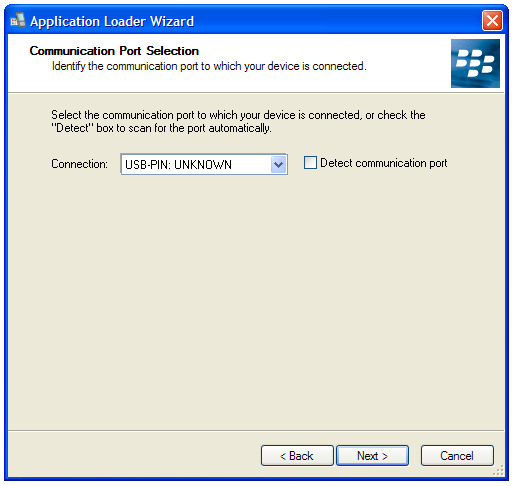
Step #2: We need to connect the BlackBerry to the Computer via USB cable. But here's where the tricky part comes in with the Nuked BlackBerry. Do you see in the image above where it says COM1? What we want to do is plug in the BlackBerry, and when COM1 switches to say USB-PIN:UNKNOWN we immediately click Next. This catches the BlackBerry and takes it out of the constant reboot cycle and allows you to then reload the Operating System.
Tip: The USB-PIN:UNKNOWN option will display for a few seconds when the BlackBerry is first connected/flashing its LED in red. With a Nuked BlackBerry,  That occurs when the device is in the initial start-up part of it's reboot sequence. The easiest way to get that to happen (vs. waiting for that step in the reboot sequence where you have a tenth of a second to hit Next before you lose your chance) is to simply pull the battery from the BlackBerry. With the battery pulled, connect the BlackBerry to the USB connector and as SOON as you see USB-PIN:UNKNOWN hit Next. You have to be quick still, but using this method you are in control of the timing. From there you can put the battery back in and battery cover back on (Make Sure you install the battery or else when the OS update is completing and the device disconnects from the computer to reboot, it will lose the power provided by the USB connection and you will get an error and have to do it all over again!).
** If you don't get it right the first time, try again (unplug from USB, pull battery, connect and hit Next while USB-PIN:Unknown is showing). You have to be fast and the timing is key, so it may take you three or four trials.
Connect Your BlackBerry via USB. Click NEXT as Soon as USB:UNKNOWN Appears
Tip: With Battery Out, Connect BlackBerry to USB.
This will give you more control in nailing the timing of
connecting Next while USB:UNKOWN displays
Step #3: With your BlackBerry now out of the permanent reboot sequence, you are essentially in the clear and well on your way to having your BlackBerry up and running again. Choose the options you want to install on your BlackBerry (BrickBreaker, BlackBerry Messenger, BlackBerry Maps, etc.), click next, then approve the installation by clicking "Finish." Sit back and relax while the BlackBerry does its thing. It'll take some time and go through a number of screens but eventually you will reach my favorite "The loading operation was successful" screen. Your BlackBerry will reboot itself at this point and it will take a LONG time to reboot (10 - 15 minutes or so). You can unplug it from the USB (it's not connected while rebooting) and just continue to sit back and wait. Get scared, but not too scared...it will eventually boot up.
  Select the OS options you want to install
Approve the Operating System Instalation Options
Sit back and relax and let the installer do its thing
Installation Complete! Just sit back and let your BlackBerry Reboot
Step #4: That's it! You are done. Brand New BlackBerry. With your BlackBerry no longer Nuked, you can run through the Set Up Wizard (set the date/time/fonts, etc.) and from there you WILL NOW BE ABLE TO connect to the BlackBerry Desktop Manager software. Hopefully you occasionally back up your data and can now use Desktop Manager's restore function to load up your backed up data. If not, hopefully you have your contacts all synced to Outlook so you can reload your Address book from there. Once that's done, it's time to install all your favorite apps again!  

 At least in this case I KNEW I was putting some risky software onto my BlackBerry
so before installing did a backup of my data. Once I un-nuked my BlackBerry
I was able to relatively quickly get back to where I was before.
That's all folks! This is one of those lessons that I hope you don't need to use, but if you ever do find yourself with a Nuked BlackBerry I hope this lesson gets you back up and running quickly. There are some alterantives to this method as well, including some third-party apps like BBSAK
THIS TUTORIAL WAS GOTTEN FROM www.crackberry.com


HOW TO USE MOBILE CAMERA AS PC WEBCAM FOR BOTH ANDRIOD AND SYMBIAN

How to use Mobile Camera as PC Webcam - Android - Symbian

Online chatting has been redefined with the video chat technology and more and more webcams are taking birth introducing new and vast technology, well but side by side webcams are somewhat expensive and can do only one task live streaming you to your friends and family members. Well if you wanna save your money and side by side want the same webcam experience, you can convert your mobile camera into PC webcam with small apps and tools easily.
Well we have three best options tat work universally on every platform, so we are going to use Smartcam as our first source, Mobiola web camera and the second source and the third one is specifically for android that’s iP webcam.

#1. Smartcam Package :

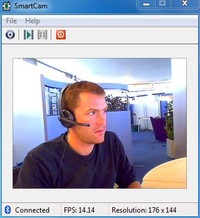
Smartcam Package simply provides an easy to install option for your all devices, Symbian, Android, iPhone and connect them as a webcam for your pc.
  1. Download Smartcam Package and extract it in your pc, it’s a simple zip package so just right click and choose extract.
  2. Now it contains a .exe file for your computer and applications for your android device, Symbian device and iPhone. You can use the one in package or you can download them online for newer versions.
  3. Now after you have installed on both devices just fire it up using Bluetooth or USB connectivity and follow instructions and you will be live streaming your mobile camera video as PC webcam.


#2. Mobiola Web Camera :

Mobiola Web camera is available for iOS Devices, Blackberry, Symbian but its nor free and you have to pay little cost to get that app running.
  1. Purchase Mobiola Web Camera software or download as trial version.
  2. Now juts install app on your device after purchasing their device application.
  3. That’s it now follow instructions and start chatting with your friends.


#3. iP Webcam for Android Devices :

iP Webcam for Android is simple application fro converting your Android Device into a wireless PC Webcam. This free application can be installed right into your pc and can used just by a simple iP (internet protocol address).
  1. Download iP Webcam Android App.
  2. Install the application on your phone and connect to the same Wi-Fi network connected to your PC.
  3. Now just follow the instruction on your app and you will be able to connect your device camera with your PC and use it as a webcam.


So now these were the three easy options of converting your device camera into a simple and free PC webcam. So no investment but still the same fun of video chatting is continued. Have fun and do comment

THANKS TO Rishabh Jain FOR COMPILING THIS TUTORIAL....