The Nuked Berry Problem
The fundamental problem with the Nuked Berry scenario is that because the device is stuck in a permanent reboot sequence or loop, when you attach it your computer via USB cable it simply connects and disconnects over and over and over again (you’ll just keep hearing that USB detected/unplugged noise) as the BlackBerry turns on/off. This makes using the BlackBerry Desktop Manager software to reload your OS impossible as the device is only detected for a couple of seconds before the device shuts off (and is now undetected).
Nuked Berry...just a second before the display shuts off
and the device reboots itself, again and again and again
With pulling your BlackBerry’s battery doing nothing to solve the
problem and it being impossible to establish a link to your desktop, at
this point if you called your carrier for support there’s a chance
they’ll tell you your BlackBerry is broken and that it’s time for a new
one. To me that’s not a bad thing (what’s better than getting a new
BlackBerry?!), but it’s not the CrackBerry way! Let's fix it!and the device reboots itself, again and again and again
Requirements/Disclaimer
Before reloading the operating system on a Nuked BlackBerry, you need to make sure you have taken care of some basics:- you are using a Windows Computer
- have BlackBerry Desktop Manager installed
- have the BlackBerry Operating System you want to install/reload onto your Nuked BlackBerry installed
The following process doesn't just work for Nuked BlackBerrys. You can also use it to clean the slate/reload/update the OS on a BlackBerry that's in fine working order.
How to Reload the OS on a Nuked BlackBerry
Step #1: Make sure your BlackBerry IS NOT connected to your computer. Locate and Open the App Loader application. You won't have a shortcut to this program on your start menu. You need to locate it manually. Open your file browser, go to your C Drive (operating system drive) and navigate your way through the folders to Program Files > Common Files >Research In Motion > AppLoader. Once you are in the AppLoader directory, double click on the Loader application shortcut. Once Loader opens, you can click Next and then proceed to Step #2. As you may have noticed, we skip Desktop Manager altogether.

Step 1: Browse your way into the AppLoader Directory, and Open the Loader Application

The Loader Homescreen. You can Click Next to Continue

After you click next, Loader Waits for you to Connect the Device.
Proceed to Step #2
Proceed to Step #2
Step #2: We need to connect the BlackBerry to the Computer via USB cable. But here's where the tricky part comes in with the Nuked BlackBerry. Do you see in the image above where it says COM1? What we want to do is plug in the BlackBerry, and when COM1 switches to say USB-PIN:UNKNOWN we immediately click Next. This catches the BlackBerry and takes it out of the constant reboot cycle and allows you to then reload the Operating System.
Tip: The USB-PIN:UNKNOWN option will display for a few seconds when the BlackBerry is first connected/flashing its LED in red. With a Nuked BlackBerry, That occurs when the device is in the initial start-up part of it's reboot sequence. The easiest way to get that to happen (vs. waiting for that step in the reboot sequence where you have a tenth of a second to hit Next before you lose your chance) is to simply pull the battery from the BlackBerry. With the battery pulled, connect the BlackBerry to the USB connector and as SOON as you see USB-PIN:UNKNOWN hit Next. You have to be quick still, but using this method you are in control of the timing. From there you can put the battery back in and battery cover back on (Make Sure you install the battery or else when the OS update is completing and the device disconnects from the computer to reboot, it will lose the power provided by the USB connection and you will get an error and have to do it all over again!).
** If you don't get it right the first time, try again (unplug from USB, pull battery, connect and hit Next while USB-PIN:Unknown is showing). You have to be fast and the timing is key, so it may take you three or four trials.
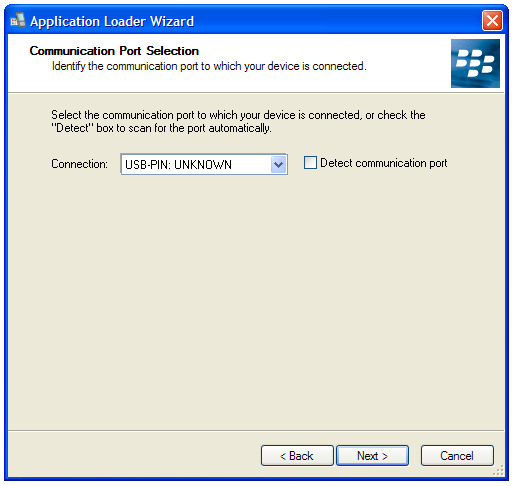
Connect Your BlackBerry via USB. Click NEXT as Soon as USB:UNKNOWN Appears

Tip: With Battery Out, Connect BlackBerry to USB.
This will give you more control in nailing the timing of
connecting Next while USB:UNKOWN displays
This will give you more control in nailing the timing of
connecting Next while USB:UNKOWN displays
Step #3: With your BlackBerry now out of the permanent reboot
sequence, you are essentially in the clear and well on your way to
having your BlackBerry up and running again. Choose the options you want
to install on your BlackBerry (BrickBreaker, BlackBerry Messenger,
BlackBerry Maps, etc.), click next, then approve the installation by
clicking "Finish." Sit back and relax while the BlackBerry does its
thing. It'll take some time and go through a number of screens but
eventually you will reach my favorite "The loading operation was
successful" screen. Your BlackBerry will reboot itself at this point and
it will take a LONG time to reboot (10 - 15 minutes or so). You can
unplug it from the USB (it's not connected while rebooting) and just
continue to sit back and wait. Get scared, but not too scared...it will
eventually boot up.

Select the OS options you want to install

Approve the Operating System Instalation Options

Sit back and relax and let the installer do its thing

Installation Complete! Just sit back and let your BlackBerry Reboot
Step #4: That's it! You are done. Brand New BlackBerry. With your
BlackBerry no longer Nuked, you can run through the Set Up Wizard (set
the date/time/fonts, etc.) and from there you WILL NOW BE ABLE TO
connect to the BlackBerry Desktop Manager software. Hopefully you
occasionally back up your data and can now use Desktop Manager's restore
function to load up your backed up data. If not, hopefully you have
your contacts all synced to Outlook so you can reload your Address book
from there. Once that's done, it's time to install all your favorite
apps again!

At least in this case I KNEW I was putting some risky software onto my BlackBerry
so before installing did a backup of my data. Once I un-nuked my BlackBerry
I was able to relatively quickly get back to where I was before.
so before installing did a backup of my data. Once I un-nuked my BlackBerry
I was able to relatively quickly get back to where I was before.
That's all folks! This is one of those lessons that I hope you don't
need to use, but if you ever do find yourself with a Nuked BlackBerry I
hope this lesson gets you back up and running quickly. There are some
alterantives to this method as well, including some third-party apps
like BBSAK
THIS TUTORIAL WAS GOTTEN FROM www.crackberry.com